
How to Submit a Report on Behalf of a Staff Member
This page will help guide you through submitting a report for a member of staff. the link below provides this material in a downloadable PDF format.
This guide explains how to complete the Report + Support form when you are submitting a report on behalf of a staff member. It provides step‑by‑step instructions and describes what information is required.
You may submit a report:
- With your contact details, or
- Anonymously
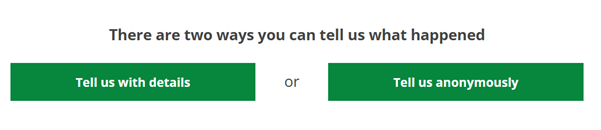
You can switch between these options at any time while completing the form.
You can complete this form using keyboard navigation or assistive technology. If you need support completing the form or require adjustments, please contact the HR team at staffreportsupport@cardiff.ac.uk.
Page 1 – Describe what happened
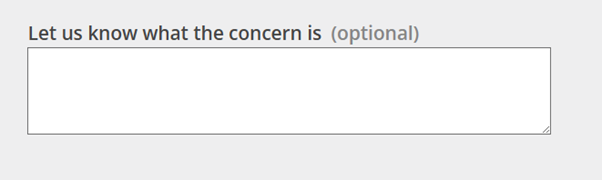
screenshot of free text box on form requesting further details
Use the free text text‑text box to explain the event in your own words. There is no character limit. Add as much detail as you feel is appropriate.
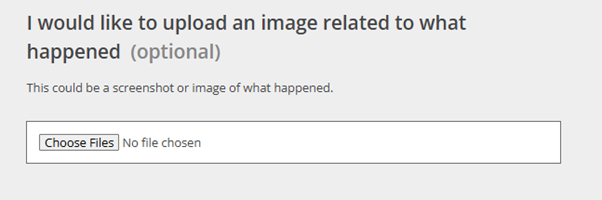
screenshot of form showing option to upload photos
You may upload images such as, screenshots of messages or emails or photos related to the incident, Videos cannot be uploaded. This question does not appear on the anonymous report.
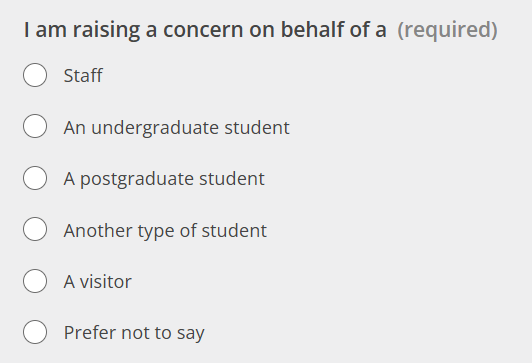
Screenshot of question "i am raising a concern on behalf of .."
Choose the option that best describes the person affected by the incident:
- Reports involving staff members are sent to the HR team.
- Reports involving anyone else are sent to the Student Support and Inclusion Team (SSIT) in the first instance.
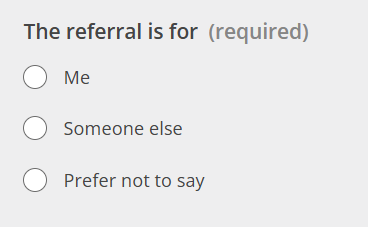
screenshot of question "this referral is for"
This question helps us understand if the report is for you, or someone else.
Select “Someone else” if you are submitting the report on behalf of another person (e.g., a team member you line-manage).
Page 2 - When the Event Happened
Provide information about, the date or approximate timeframe of the incident and whether the behaviour occurred once or repeatedly
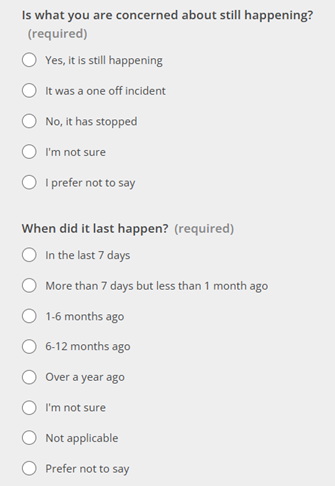
screenshot of form page gathering information on when the event took place
Page 3 - Type of Incident
This page helps us understand what the incident type is, You may choose more than one option.
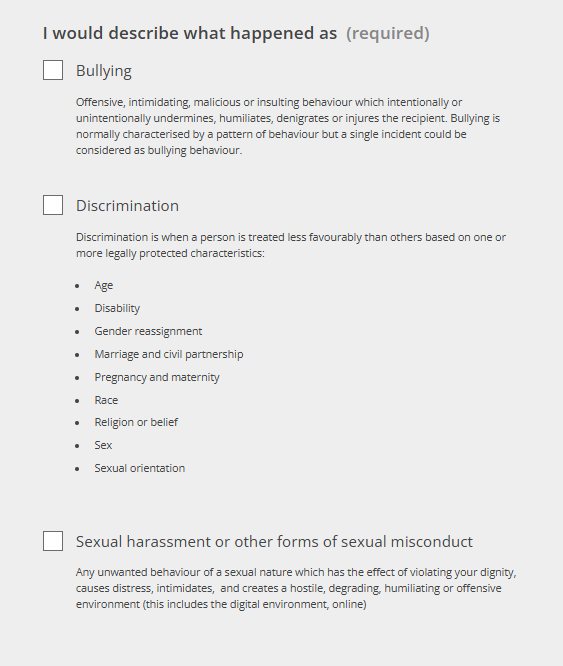
Screenshot of form page requesting type of incident
Page 4 – Information about the person affected
(This page appears only when reporting on behalf of someone else.)
Provide the staff member’s details, including their name. If the staff member does not wish to be identified, you may write: “Prefer not to disclose.”
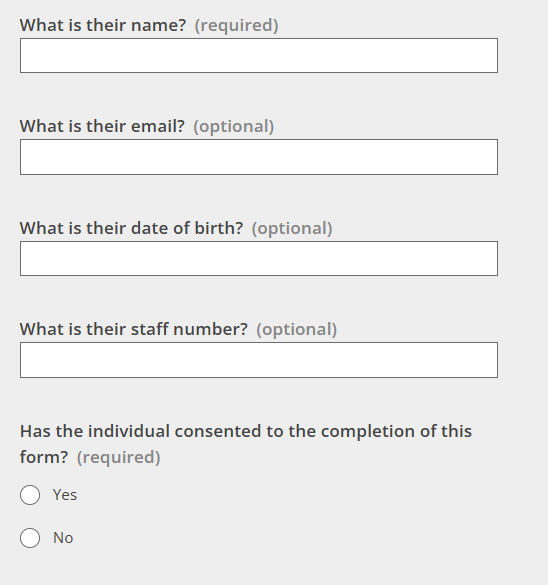
Screenshot of form requesting contact information for effected individual
Page 5 - Where the Staff Member Works
Select the school, department, or professional services area where the staff member is based. This helps ensure the report is sent to the correct HR team.
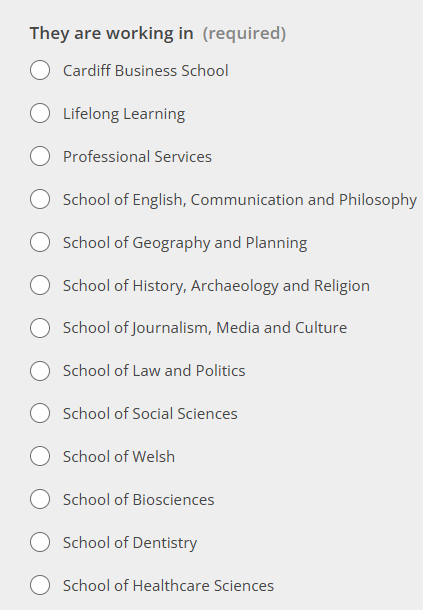
screenshot of question "they are working in..."
Page 6 - Location of the Incident
Please confirm where the incident has occurred. Examples have been provided.
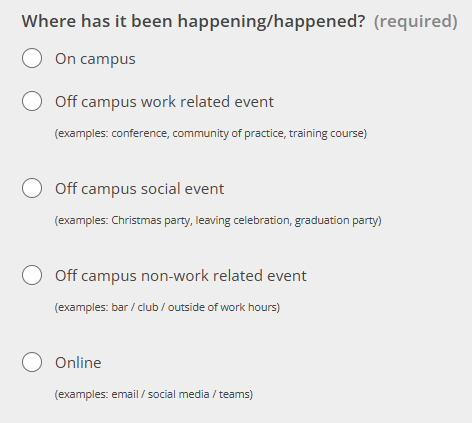
Screenshot of question "Where has it been happening/happened"?
Page 7 - Who Carried Out the Behaviour
Provide any information you have about the person responsible for the behaviour. If you do not know this information, please answer to the best of your knowledge.
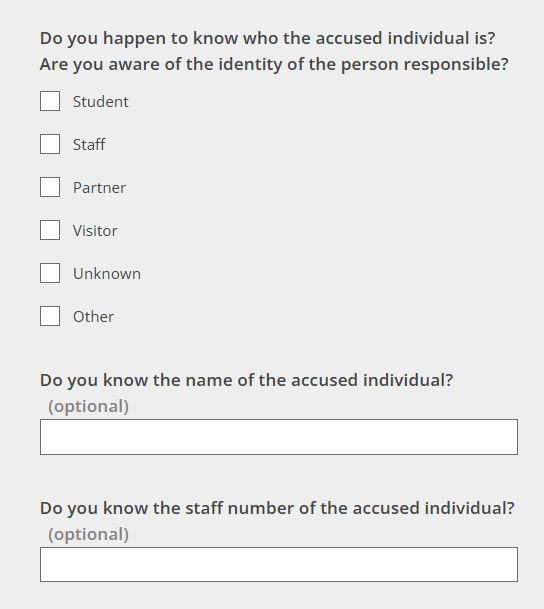
screenshot of form page requesting information on identity of accused individual
Page 8 - Type of Discrimination (If Applicable)
If you believe discrimination took place, you may select one or more protected characteristics that were relevant
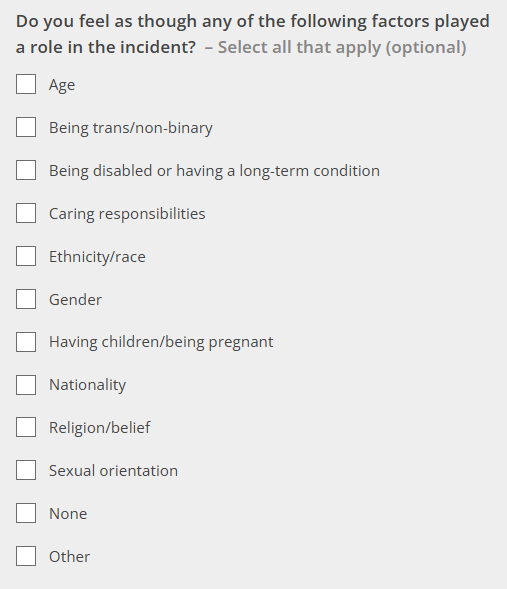
screenshot of question "do you feel as though any of the following factors played a role in the incident?"
Page 9 – Your contact details
If you are submitting the form anonymously this page will not appear
Please provide us with your contact details on this page. This allows the HR team to contact you if follow-up is needed.‑up is needed.
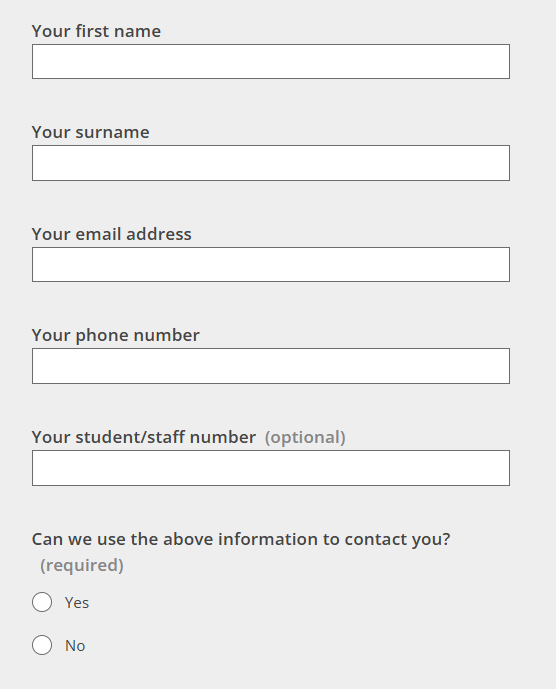
Screenshot of form page requesting contact information and consent question
Page 10 – Additional Information
These questions are specific to the staff routing.
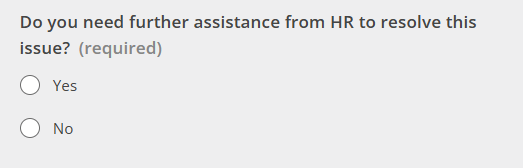
Screenshot of question "do you need further assistance from HR to resolve this issue?"
If you are submitting the form anonymously this question will not appear
Ticking yes further support from HR will ensure your report is triaged to the appropriate HR member who will then contact you regarding your report.
If you click no your report will be closed and used for data analysis.
You will receive an email confirming how your report has been processed.
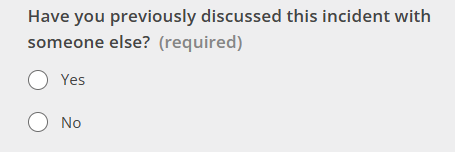
Screenshot of question "have you previously discussed this incident with someone else?"
If you click yes, a free text box will appear where you can provide more information on who you have spoken to previously, you can provide us with specific names of people, or how they relate to you (eg. Line manager, head of school, local HR advisor).
Page 11 – Equality Information
These questions help the University monitor equality.
You may choose to:
- answer all questions
- skip any questions
- skip the page entirely
These questions are not mandatory.
Final Review and Submitting Your Report
Before sending the form, you will see a summary page showing all your answers.
You may click “Change” next to any answer to edit it. When you are satisfied, select “Send form” to submit your report. Once your report has been submitted you will not be able to change any of your answers.